
Prospects CRM is moving to a paid plan. If you want to keep working your contacts without paying for it, you can bring your whole book into Telelisting in a few minutes: every email, every phone number with its type, the address, the language, and every dated note.
Step 1 — Export your contacts from Prospects CRM
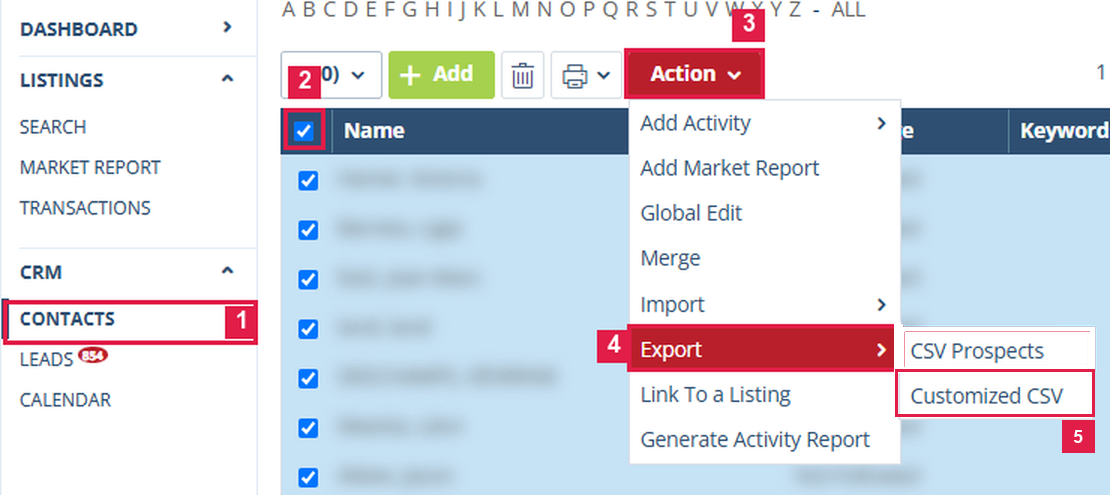
- In Prospects CRM, open Contacts (left menu, under CRM).
- Tick the box at the top of the list. If you have more than one page, click the (0) ▾ button, then Select All.
- Click the red Action button.
- Point to Export.
- Choose Customized CSV.
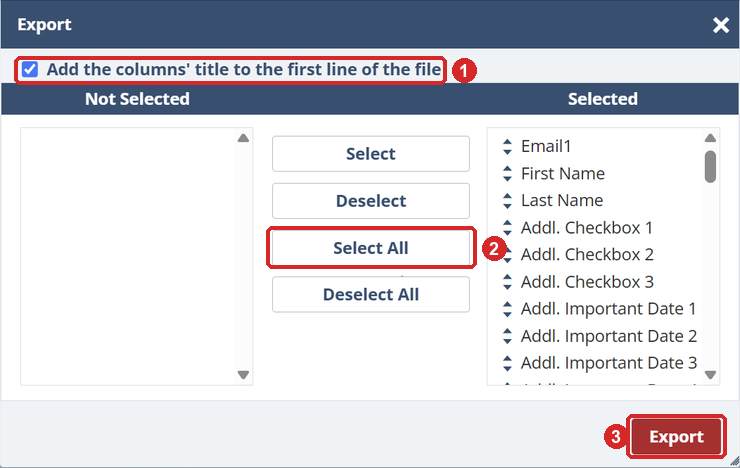
- In the window that opens, click Select All so every column moves to Selected. This is what brings your notes, every phone number and all three email addresses along.
- Keep "Add the columns' title to the first line of the file" ticked.
- Click Export. The file downloads to your computer.
Tip: leads waiting in the Leads tab of Prospects have no export. Accept them first so they become contacts, then export.
Step 2 — Import the file into Telelisting
- Sign in at crm.telelisting.net. No account yet? Start a free trial on telelisting.net.
- Open Imports and choose Import a Prospects file.
- Drop the file you just downloaded onto the page.
- Review the summary: number of contacts, how many have a phone, how many have an email, and how many notes.
- Confirm. Your contacts land straight in your Leads.
What comes across
- Every email and every phone, with its type (mobile, home, other…)
- The address, language, company and job title
- Each dated note from Prospects, as its own note on the lead
- Fields Telelisting has no column for (birthday, spouse, keywords, website, transaction anniversary, mortgage renewal, additional fields), kept together in one Prospects details note
Importing twice is safe
A contact already among your leads (same Prospects id, email or phone) is updated, never duplicated. A blank in the file never erases what the lead already has. If you add contacts in Prospects next week, just export and import again.
Need a hand?
Write to us from inside Telelisting with the help button, or ask the support assistant. We will walk through it with you.